Running external commands
Overview
While most of the time spent developing is likely to be editing, there’s often a
need for running external commands, such as compilers, test, etc., as part of
the work flow. Howl provides two different commands for this purpose, exec and
project-exec, bound to ctrl_shift_r and ctrl_alt_r respectively. They both
work the same way, allowing you execute a command of your choice from within a
directory, displaying any output in a buffer. The difference is that
project-exec starts out from from the root of your current project directory,
while exec starts out in the directory associated with the current buffer.
Interacting with the prompt
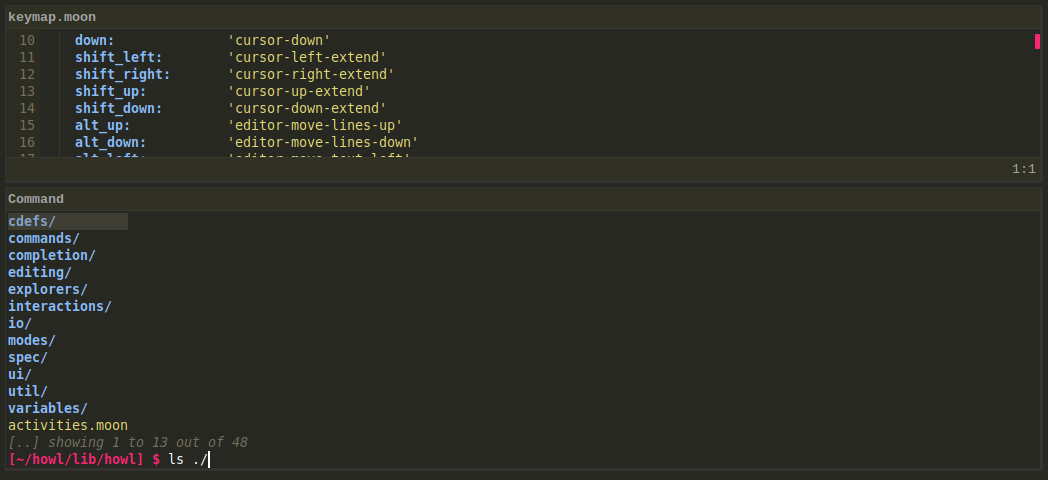
Upon executing one of the above commands, you’ll end up in the prompt. The
prompt offers specific completions and ways of making it easier to input your
command. Just as with the ordinary prompt for opening a file, you can enter
backspace to move up one directory level. Entering ~ and / allows you to
quickly run a command from your home directory, or the root directory,
respectively. Completions are available both for commands themselves as well as
arguments, and support completion of arguments spanning multiple directory
levels (e.g. ./my-dir/sub-dir/foo).
As a final convenience, the prompt supports an internal cd command, allowing
you to move to a different directory within the prompt.
Running commands
Once you have typed your command, you can run it by pressing enter. Both the
exec and project-exec commands will launch the specified command in the
directory displayed in the prompt, using your shell. The fact that your shell is
used for this allows for the use of any ordinary shell aliases you normally use
(provided that they are available for non-login shells), as well as shell
constructs such as for loops, etc.
The command thus launched will be associated with a new buffer, in which any output from the command will be displayed. Commands will not block the editor while running, so you’re free to resume your other tasks while the the command runs. There is also no limitation on the number of concurrently executing commands you might have - they will all be associated with their own buffers that you can switch between as you please, as illustrated by the below image.

Also illustrated by the above image is the fact that Howl adds some extra support for displaying a command’s output, with the example in question showing off Howl’s support for ANSI color escape codes. For less fanciful commands Howl will display any standard output plainly, while error output will be shown in a different style to allow you to quickly differentiate between the two.
project-build
Howl features another execution command, project-build, bound to ctrl_shift_b. This is the same as
project-exec, but it executes the command defined in config.project_build_command.
The project environment
Commands run with project-exec and project-build, as well as language
servers, get the project’s environment: the environment
variables Howl was started with, plus any that apply to the project.
Python virtualenvs: The project’s virtualenv is activated, as its
activatescript would do. That is a.venvorvenvdirectory in the project root, or else, for a Poetry project, the virtualenv Poetry uses for it..envfiles: The variables in a.envfile in the project root are added last, overriding any others. Values may be quoted, and${NAME}is replaced with the value ofNAME. To use another file, or none, set theproject_env_fileconfiguration variable, for example for the project directory only.
The environment is worked out the first time it’s needed, and again whenever a
file it depends on, such as .env or pyproject.toml, is saved. If that changes
the environment, the project’s language servers are restarted.
Dealing with rogue commands
While a well behaved command will exit on its own, occasionally there are those
that need an helping hand. Pressing Ctrl + c when in a process buffer will
send the SIGINT signal to the currently running process, hopefully hastening
its way towards a graceful exit (Ctrl + c while a selection is active will
still only copy the selection). For the obstinate cases, Ctrl + backslash can
be used to send the SIGKILL signal.
The signal is sent not only to the command itself but also to any processes it started, such as the other commands of a pipeline or the compilers run by a build tool, so that these are not left running once the command is gone. The same goes for stopping or killing processes from the process list.
Listing long-running processes
Processes that keep running in the background, such as commands launched with
exec or language servers, are counted in the bottom
right corner of the editor, left of the cursor position. The count is only
shown while any such processes are running. Clicking it, or running the
process-list command, opens a buffer listing the processes along with their
working directories and how long they’ve been running. In this buffer you can
press s to stop the process on the current line, or K to kill it should it
not respond.
Next: Language servers